Data Storage
If you are a new SCCN member and have just gotten an account to access our data, you may be sitting in front of a workstation with an empty desktop. Where do you start? This guide will help you on that journey.
How do I get started on analyzing data?
If you brought your own data, you can load that onto our shared disk system. You can also begin to work on existing data sets that are available from various sources. This is a brief summary of some of those locations.
/data/projects
This is primarily where you will work. Create a folder for yourself in this location and then copy your own data or other data sets into that folder. All users in SCCN have access to this space, so others can assist you from their own accounts if you need assistance with loading or processing your own data. Because this is shared space, we ask that you do not use more than 1 TB of space. If our available space gets too low, it may be necessary to remove someone else's project data (or your own).
Linux: /data/projects
Windows: \\sccn.ucsd.edu\projects
Macintosh: smb://sccn.ucsd.edu/projects
/data/temp
For temporary items you only need for a short period of time, you may stash items in here for others to grab. Files and folders in here may be deleted at any time without warning, so use with caution. This data share is aptly named!
Linux: /data/temp
Windows: \\sccn.ucsd.edu\temp
Macintosh: smb://sccn.ucsd.edu/temp
/home/username
This is your own private space. If you have data that only you are going to be working on without collaboration with other lab members, you may use this space. Note that there is a hard limit of 500 GB in your /home.
Linux: /home/username
Windows: \\sccn.ucsd.edu\username
Macintosh: smb://sccn.ucsd.edu/username
For access to other data storage locations, ask one of our Principal Investigators or our Lab Manager.
How do I access those data locations?
Linux MATE or Gnome Desktop
Double-click your Home icon (MATE) or run Files (Gnome).
Type Ctrl-L to reveal the address bar if it is hidden.
In the address bar, enter the path to the data. In some cases, you cannot browse to these locations. you must type this in directly to the address bar. For example,
/data/projects
Terminal
In a terminal, including Terminal apps on Linux, Macintosh, and Windows (PuTTY), use the cd command to change to that directory, for example,
$ cd /data/projects
Windows
Make sure you are on a UCSD network. If off-campus, use the UCSD VPN. Open a File Explorer window, such as Documents. Click in the white space of the address bar so you can type in a location, such as
\\sccn.ucsd.edu\projects
Enter your SCCN username and password.
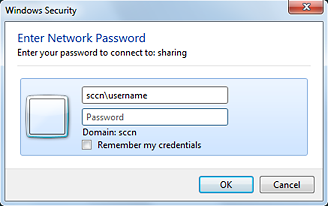
To create a shortcut to one of these locations after you get access to the shared folder, drag the yellow folder icon in the left of the address bar to your desktop or another folder window.
Macintosh
Make sure you are on a UCSD network. If off-campus, use the UCSD VPN.
In your Finder app, select the Go... menu, choose Connect to Server... Enter one of the data shares by typing it in this format:
smb://sccn.ucsd.edu/projects
Enter your SCCN username and password.
To create a bookmark to one of these locations, click the + to add it to the list.